NetDecoder - DeviceNet Analyzer:
Sniff, Analyze, Debug and Troubleshoot
DeviceNet Networks
The NetDecoder
-
DeviceNet analyzer provides a comprehensive troubleshooting
and diagnostics solution for solving communication problems on DeviceNet
networks.
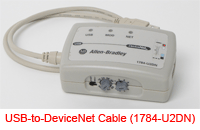
The DeviceNet analyzer supports the following DeviceNet interface cards:
- Rockwell Automations 1784-U2DN USB interface.
- Molex-SST's PCI and PCMCIA interfaces.
The NetDecoder analyzer uses these cards as the sniffer interface into the DeviceNet
network. The startup wizard provides the options to run the analyzer using
any of these DeviceNet interfaces.
The NetDecoder analyzer provides a wide range of features to simplify troubleshooting
DeviceNet problems.
These features include:
DeviceNet Capture Filters
The
NetDecoder - DeviceNet analyzer using the SST interface cards provides the ability to set
capture filters while sniffing data. This feature is very helpful for
diagnosing DeviceNet problems because it provides the engineer with only the
relevant data. Users can access the capture filters through the I/O settings
menu.
The 'Capture Filter' tab has a toolbar with buttons to perform common task
such as Clear the current filter settings, Load a filter from disk, Save the
current filter to disk, Open the Add Message dialog , Expand all nodes in
the filter display and Collapse all nodes in the filter display.
The Filter Panel on the left displays the messages that is captured (or
excluded) by the current filter.
To create a filter, first choose which nodes to include in the filter in the
Client MAC and Server MAC boxes.
Client MAC - When non-blank, messages associated with the client side of a
conversation are added for this MAC ID. When blank, no client side messages
are added.
Server MAC - When non-blank, messages associated with the server side of a
conversation are added for this MAC ID. When blank, no server side messages
are added.
Example - To filter on all server side messages from MAC ID 3, leave the
Client MAC blank and put "3" in the Server Side box.
Choose the messages to filter on by checking the boxes. When blank, all
messages associated with the specified client and server MAC IDs are added
to the filter. Enabling one or more checkboxes limits the messages added to
specific connection types only.
Check the Exclude box to cause all messages except those listed in the
filter panel to be captured.
Data that is filtered out using a capture filter cannot be recovered.
Filtering is very helpful to weed out unwanted messages and isolate messages
that cause trouble. The reduced traffic allows the network analyst to
concentrate on thorny issues and thereby reduces debugging time.
DeviceNet Triggers
Special
Triggers for the SST Interface Cards
There are special triggers in the I/O settings dialog when using the SST
interface devices.
- Put interface offline in Bus Warning condition
This is the default condition and will be checked when the dialog
first appears. If a user starts a DeviceNet capture using the SST
interface card with the wrong baud rate, the entire network could go
offline. With this option, NetDecoder monitors the Bus Warning condition
bit and once the bit exceeds the set limit, the card is put offline to
protect the network.
- Stop capture on Error condition
This is a stop trigger that stops the capture whenever an error
condition is detected on the bus.
Start and Stop Triggers for the 1784-U2DN
The DeviceNet 1784-U2DN I/O Settings provides the user options for
setting START and STOP triggers. The user can define the START and STOP
triggers according to the contents of the Controller Area Network (CAN)
Identifier field in the DeviceNet frame. The CAN ID of a DeviceNet frame
consists of three parts: the Group Number, the MAC ID and the Message ID.
ON the I/O Settings dialog you can Add, Edit, and Delete START and STOP
Triggers.
A START trigger is defined as the event that starts data capture. The
capture engine ignores all DeviceNet frames prior to the enabling of the
specified START trigger. All subsequent frames are captured until either a
user-defined STOP trigger fires or the user manually stops data capture.
A STOP trigger is defined as the event that stops data capture. The
capture engine stops capturing all frames after the specified STOP trigger
event is enabled.
The START or STOP trigger is enabled when an incoming DeviceNet frame has
a CAN ID value equal to the value in the Simple Trigger. If user has defined
multiple CAN IDs, then the condition is met if the CAN ID of the incoming
frame matches any one of the defined IDs. If the user enters a blank field
in the trigger dialog, then that implies that the trigger condition is met
on any value of CAN ID.
In the case of a START trigger, the particular frame matching the
condition will be the first frame in the capture and all subsequent frames
will be captured. In the case of a STOP trigger, the particular frame
matching the condition will be the last frame in that capture session.
The user can define and store multiple START and STOP triggers. The
triggers are displayed in the list control boxes shown on the I/O Settings
Dialog. Though multiple triggers can be created and saved, only a single set
of START and STOP triggers can be selected at a time. The triggers are
defined on the CAN IDs of the messages.
The I/O Settings option is not available during the middle of a data
capture. Only when the data capture is stopped, the user will be able to
select the I/O settings menu and bring up the triggers.
The triggers are saved in a NetDecoder .ini file. The saved triggers
appear in the I/O Settings dialog the next time the application is opened.
DeviceNet Statistics
For both the Rockwell Automation and SST-Molex's interfaces, NetDecoder
provides statistics on
- CRC errors.
- Bit-stuff errors and error flags.
- Firmware buffer overflows (U2DN or SST interface.
- Frame errors.
DeviceNet Hardware Settings
Hardware Settings for the 1784-U2DN sniffer interface
The
Hardware Settings dialog allows you to select a device to sniff/scan. You
access the Hardware Settings dialog by selecting Hardware Settings from the
Options menu on the NetDecoder Control window. NetDecoder automatically
scans and identifies all the 1784-U2DN devices plugged into the PC. These
devices, identified by their Serial Numbers, are displayed in the drop-down
list of Available Sniffers.
To learn more about testing, troubleshooting
and debugging DeviceNet networks download a NetDecoder
demo. You can also order your
copy of NetDecoder online.